In Workday, the Universities of Wisconsin organizes all employees—referred to as workers—using a standardized system called the UW Organization Structure. The following information is intended to help staff who run reports, manage budgets, or utilize worker data within Workday, Tableau, and the Enterprise Analytics Platform (EAP) better understand this underlying structure and how to navigate it.
The UW Organization Structure connects the reporting lines (who reports to whom, or Supervisory Organizations) with the Cost Center Hierarchy (CCH) financial structure. Every worker across the university system has a consistent “home” based on four key details:
- Home institution
- Home executive office (e.g., Provost, Vice Chancellor)
- Home division
- Home department
As a result, the UW Organizational Structure provides a similar, streamlined organizational code structure for all of the UWs.
Why Is This Important?
Understanding this structure is essential for anyone who runs reports or uses worker data to do their job. It helps you:
- Generate accurate reports
- Extract groups of employees, positions, and supervisory organizations
- Understand budgets
- Navigate the structures of the UW
The UW Organization Structure Hierarchy
The organization structure is hierarchical. The Universities of Wisconsin is at the top, and the individual workers are at the bottom.
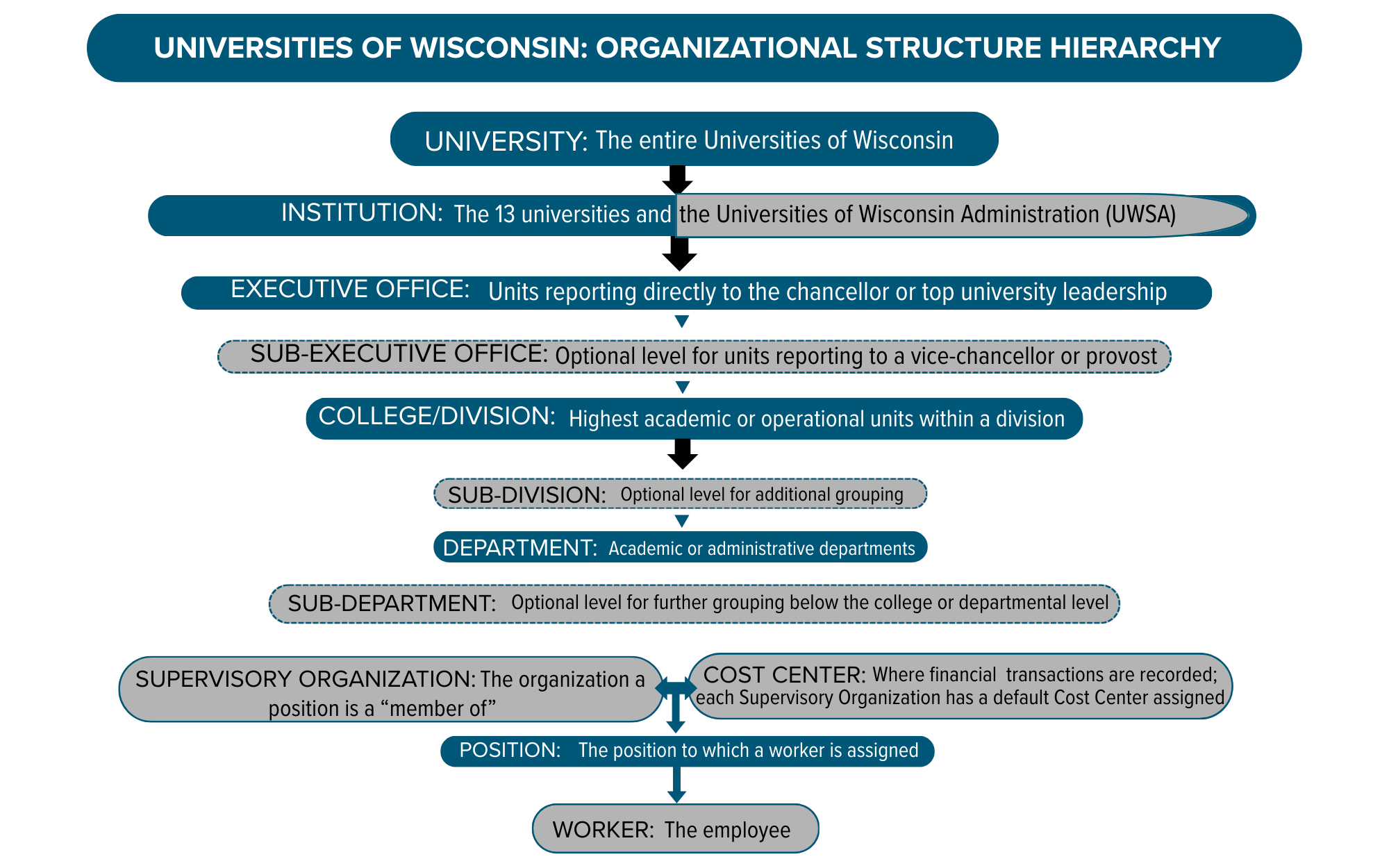
The following breaks down the levels from top to bottom:
- University: The entire Universities of Wisconsin system
- Institution: The 13 individual universities and the Universities of Wisconsin
- Executive Office: High-level leadership reporting to a Chancellor (e.g., Provost or Vice Chancellor)
- Sub-Executive Office: (Optional) Large units under an Executive Office
- College/Division: The highest operational or academic areas (e.g., College of Letters & Science)
- Sub-Division: (Optional) Smaller groupings within a division
- Department: Academic or administrative departments (e.g., Biology Department, HR)
- Sub-Department: (Optional) Further grouping below a department
- Cost Center: The financial unit where transactions are recorded. Every Supervisory Organization has a default Cost Center.
- Supervisory Organization: The specific team a position belongs to
- Position: The position, or role a worker holds
- Worker: The employee filling the position
How to Identify Groups: “Member Of” vs. “Manager Included”
When running reports or creating groups in Workday, the Enterprise Analytics Platform (EAP), or Tableau, you must determine if the position at the top of a supervisory organization should or should not be included. Depending on the need, there are two ways to identify groups within the UW Organization Structure:
1. Standard Workday “Member of”
In this default view, a manager is not considered a member of the team they supervise.
- A manager is a “Member of” their supervisor’s organization. They are the “Leader of” their own subordinate organization.
- Result: The group includes the workers but excludes the manager.
2. “Manager Included” Option
This option is used when you need the manager to appear in the same group as their direct reports.
- This forces the reporting tool to include the leader within the organization they lead.
- Result: The group includes the workers and the manager.
In Workday, many reports include a prompt to include the manager in the report output. In the EAP, the Worker Directory dataset also includes an option to include the manager in the report output.
Creating Groups and Filtering Data in EAP or Tableau
The UW Organization Structure can be used to create groups in EAP or Tableau. The following table provides examples of how to filter data in these tools to get the group you need.
| Use Case | Filter to Use in EAP & Tableau | Why use this filter? |
| All staff in a department (excluding the manager) | DEPARTMENT_ID EXAMPLE: DEPARTMENT_ID = “CCH000447”) | This gets all “members” of the department. The manager is technically a “member” of the parent unit, so they are excluded. EXAMPLE: All direct members of the AIS department, excluding the manager |
| All staff in a department (including the manager) | MGRINC_DEPARTMENT_ID EXAMPLE MGRINC_DEPARTMENT_ID = “CCH000447” | The prefix MGRINC (Manager Included) tells the system to pull the manager into the list along with their staff. EXAMPLE: All direct members and the manager of the AIS department |
| Direct reports of a CIO (excluding the CIO) | DEPARTMENT_ID | Standard “Member of” logic lists only the people reporting to the CIO. |
| Direct reports of a CIO (including the CIO) | DEPARTMENT_ID OR MGR_DEPARTMENT_ID | You must use an “OR” clause to capture both the team members AND the manager position. |
Tip: When using the Enterprise Analytics Platform (EAP), look for fields prefixed with “MGRINC_” if you want to ensure the manager is included in your data.
Tools for Reporting
Use the following resources to look up specific codes or browse the hierarchy. You must be signed on to your campus network or logged in to VPN to access these resources.
- UW Organizations Workbook: Use this workbook to browse the Cost Center Hierarchy and Supervisory Organizations. This resource also helps you find the specific codes needed for Tableau filters.
- Worker Directory Dashboard: Use this dashboard to navigate the structure visually and search for specific positions or workers.